Featured-content
Though it's not commercially available yet, Windows 8 in its pre-release versions already offers a wealth of customization possibilities. Here are our favorites. Microsoft's operating system isn’t even fully released yet, but we've already got plenty to go on with Windows 8 Release Preview (and, if you're a developer, Windows 8 RTM...Read more
First Impressions: Samsung Galaxy Note 800Presenting you the first impressions of one of the most awaited and hyped device by Samsung the Galaxy Note 800 Samsung has launched the Galaxy Note 10.1 in India, slightly rebadged as the Galaxy Note 800. We had a chance to play with the device at the launch event, and here are some initial observations about ...Read more
Barely two weeks after playing a prominent role in Microsoft's launch of Windows 8 and the Surface tablet, Redmond veteran Steven Sinofsky is out as head of the Windows Division, effective immediately.
Sinofsky, who led development and marketing of Microsoft's flagship product for more than three years, joined the company as a software design engineer in July 1989. His departure, announced late Monday, was abrupt and took the tech and business worlds by surprise, with All Things D likening the suddenness of the news to Apple's ouster of iOS chief Scott Forstall late last month.
The tech site cited unnamed sources as saying that the Microsoft executive's departure "came amid growing tension between Sinofsky and other top executives." "Sinofsky, though seen as highly talented, was viewed at the top levels as not the kind of team player that the company was looking for," according to All Things D's Ina Fried.
Microsoft CEO Steve Ballmer addressed Sinofsky's departure in a company statement, describing the move as a "leadership change" without explaining why such a prominent and out-front executive was leaving the company so close to the roll out of its biggest new product in years.
"I am grateful for the many years of work that Steven has contributed to the company. The products and services we have delivered to the market in the past few months mark the launch of a new era at Microsoft," Ballmer said.
"We've built an incredible foundation with new releases of Microsoft Office, Windows 8, Windows Phone 8, Microsoft Surface, Windows Server 2012, and 'Halo 4,' and great integration of services such as Bing, Skype, and Xbox across all our products. To continue this success it is imperative that we continue to drive alignment across all Microsoft teams, and have more integrated and rapid development cycles for our offerings."
Sinofsky took over the Windows Division in July 2009 after more than a decade contributing to and leading the development of Microsoft's Office products. He was also heavily involved in recruiting talent to Redmond over the years.
"It is impossible to count the blessings I have received over my years at Microsoft. I am humbled by the professionalism and generosity of everyone I have had the good fortune to work with at this awesome company," Sinofsky said in a statement.
Julie Larson-Green has been promoted to lead Windows software and hardware engineering, while chief financial officer and chief marketing officer Tami Reller will lead the business side of the Windows operation while retaining her current positions at the company, Microsoft said.
"Leading Windows engineering is an incredible challenge and opportunity, and as I looked at the technical and business skills required to continue our Windows trajectory—great communication skills, a proven ability to work across product groups, strong design, deep technical expertise, and a history of anticipating and meeting customer needs—it was clear to me that Julie is the best possible person for this job, and I'm excited to have her in this role," Ballmer said of Larson-Green's new role.
By Damon Poeter
The device will launch with Windows 8 on the same day that Microsoft’s latest desktop/tablet OS will launch in the market.
The Samsung Series 5 Ultra Touch has a 13.3-inch capacitive multi-touch display with a resolution of 1366x768 pixels, 4GB of RAM and a 500GB HDD, along with 24GB ExpressCache. The device is fairly light, weighing in at 1.73 kgs. The lower end model comes with a Core i3 processor and will cost $799 (Rs. 44,500 approx.) and the higher end model comes with a Core i5 processor and will cost $899 (Rs. 50,000 approx.).
Samsung is adding its own mix of apps to Windows 8. Coming bundled with the device are the Samsung Hub apps (Music, Video, Media and Social). Users may be familiar with these apps as they are similar to the ones found on Samsung’s Android powered smartphones. Also onboard is the S-Launcher, a widget that will give users a replacement to the missing Start Menu in Windows 8.
Samsung is also bringing its AllShare app that uses DLNA to share content between devices. eSettings will also be available, a unified options menu for Windows 8 begineers. Samsung will also include apps that will help users with the learning curve that will be involved with Windows 8.
Windows 8 is Microsoft’s biggest OS revamp in a very long time. The OS is optimized for use on the touchscreen interface of tablets as well as the mouse and keyboard experience of desktops and laptops unifying the Windows ecosystem.
You can take a look at some of the cool features of Windows 8 here. Do also check out DIGIT review of the new Samsung Series 5 (Ivy Bridge) ultrabook.
Both the Series 5 (ATIV Smart PC) and Series 7 (ATIV Smart PC Pro) slates feature an 11.6-inch display. While the ATIV Smart PC Pro display has a 1920x1080 pixel resolution, the ATIV Smart PC's display has a 1366x768 resolution. Both products will ship with keyboard docks.
The Samsung ATIV Smart PC Pro features an Intel Core i5 processor, 4GB of RAM and up to 256GB SSD storage, 5MP rear and 2MP front camera and Bluetooth 4.0. It has 8 hours of battery life. The device measures 304.0 x 189.4 x 11.89mm (without keyboard). Check out the full specifications of the ATIV Smart PC Pro here.
The Samsung ATIV Smart PC measures 304.0 x 189.4 x 9.9mm without keyboard. It features an Intel Atom processor, Intel HD Graphics, up to 128GB storage, Bluetooth 4.0 connectivity, an 8MP rear camera, and a 2MP front camera. The ATIV Smart PC is expected to deliver up to 13.5 hours of battery life. Check out the full specifications of the ATIV Smart PC here.
It's notable the U.S.-only Series 5 and 7 Slate PCs have slightly different specifications (with different storage options), and Samsung has also released the pricing and availability of these. Samsung however, has not yet disclosed the pricing and availability of the global ATIV tablets.
The Samsung Series 7 slate costs $1,199, while the Series 5 comes in two variants – one with keyboard dock costs $749 and one without is priced at $649. All of the products are slated to hit shelves on October 26.
In addition to the ATIV Smart PC and Smart PC Pro, Samsung also showed off its first Windows RT-based tablet, ATIV Tab.
The Samsung ATIV Tab has a 10.1-inch display has a 1366x768 resolution, and the tablet is 8.9mm thick. It has 1.5GHz dual-core processor, 2GB of RAM and a mid-size 8,200mAh battery. Alongside the standard Wi-Fi and Bluetooth 4.0, the ATIV Tab features USB 2.0 port and NFC. The device comes with a free 60-day trial of Microsoft Office 2010. To read the full specifications of the device, click here.
“Samsung is delighted to introduce a wide portfolio of Windows 8 and Windows Phone 8-powered devices. With our leadership in design and technology and Microsoft’s leadership in operating systems, together we are able to provide customers with a full range of ATIV devices for cross-category convergence,” said Seong Woo Nam, Executive Vice President of IT Solutions Business at Samsung Electronics.
By Kul Bhushan
Samsung’s pre-IFA 2012 press conference held a lot of announcements, ranging from Android and Windows Phone 8 smartphones, to Windows 8 and RT tablets.
The Android smartphone Samsung introduced was the massive 5.5-inch Galaxy Note II, about which you can find more details here. The Korean giant also announced the world’s first Windows Phone 8 device, the Samsung ATIV S. The news is quite surprising, as the industry was expecting Nokia (because of their exclusive partnership with Microsoft), to be the first company to reveal a Windows Phone 8 device, at their September 5 press conference.
As expected, the next generation of Windows Phone devices would finally bring current generation hardware to the platform, and the 8.7mm-thick Samsung ATIV S doesn’t disappoint - it seems to be the device codenamed Odyssey we'd seen last month in leaked Samsung court documents, when Samsung had also launched the Windows Phone 7.5-based Omnia M. It features a 4.8-inch Super AMOLED Gorilla Glass 2 display with a 1,280x720 pixel resolution, a dual-core 1.5GHz Qualcomm Snapdragon S4 Krait (MSM8960) processor, 1GB of RAM, an 8MP rear autofocus camera with LED flash and 1080p HD recording, along with a 1.9MP front camera.
The Windows Phone 8-based Samsung ATIV S will come in 16 or 32GB storage variants. Connectivity options include 3G (HSDPA, 7.2 Mbps; HSUPA, 5.76 Mbps), Wi-Fi 802.11 b/g/n with hotspot & DLNA functionality, Bluetooth v3.0 with A2DP, NFC, GPS with A-GPS and GLONASS, stereo FM radio with RDS, and microUSB. Weighing in at 135 grams, the ATIV S is powered by a rather large 2,300 mAh battery.
On paper, the Samsung ATIV S looks like a capable device to usher in the Windows Phone 8 platform, and with the hardware finally catching, we are eager to see what other manufacturers, especially Nokia, will bring to the table. For now, the pricing and release date of the Samsung ATIV S haven't been revealed. Stay tuned for more IFA 2012 coverage, including Samsung’s Windows 8 and RT tablets, called the ATIV Tab, ATIV Smart PC, and ATIV Smart PC Pro.
The 4-inch Samsung Windows Phone 8 device codenamed Marco should be unveiled soon as well. Meanwhile, check out some more renders of the WP8-based Samsung ATIV S, below:
Via Abhinav Lal
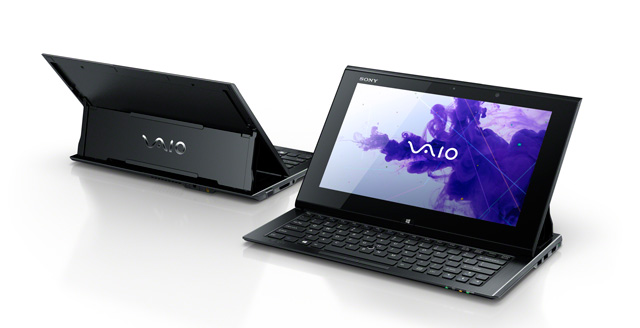
The VAIO Duo 11 leaked online earlier this week. The slide-out tablet seems to be a classic Sony device with a fantastic industrial design, which will no doubt give the Surface some competition. However, like most classic Sony devices, it will probably be expensive.
via Tech Crunch
Though it's not commercially available yet, Windows 8 in its pre-release versions already offers a wealth of customization possibilities. Here are our favorites.
Microsoft's operating system isn’t even fully released yet, but we've already got plenty to go on with Windows 8 Release Preview (and, if you're a developer, Windows 8 RTM) to have a good idea about the many ways the new OS can be dolled up. In fact, one of the standout revelations of RTM was the new "tattoos" that can add personalized flourishes to your Start screen background.
The new tattoos are only the latest additions to the many personalizations Windows 8 already boasted in previous pre-releases. In fact, the very first choice in Windows 8's PC settings page is "Personalize," where you can make the lock screen, your account picture, and start screen reflect your own style.
Windows 8 also inherits many of the customization options that were available in Windows 7—in the newer OS's desktop mode. Not only can you choose a desktop background, screensaver, and system sounds, but you can also take advantage of downloadable Themes, including some that are dynamically updated throughout the day. And you can now sync your customizations among all Windows 8 PCs you sign into.
There are even already some third-party tools that offer Windows 8 customizations, but since there's so much you can do with nothing but the OS's built-in tools, this collection will concentrate on just those. If you haven't already downloaded the Windows 8 Release Preview, you can do so and install it on any computer capable of running Windows 7. For a complete look at what's new in the OS, read our Hands On With Windows 8 RTM.
1. Lock Screen Picture
The first thing you see when you power up your Windows 8 PC or tablet is the lock screen. This is a familiar concept for smartphone users, but it's a new one for PCs. Let the first thing you see be something you love. Windows 8 RTM has six cool choices for this. The default is a Seattle scene showing the Space Needle a mountain, and a green hill. The other contrasting and appealing options include a honeycomb, a nautilus, a piano keyboard, train tracks in a city, and prisms of color. To get to this option, simply choose the Settings charm from the Start screen, Change PC settings, Personalize, and then Lock screen.
2. Lock Screen Apps
The lock screen isn't just a static picture waiting for you to log in: In addition to indicating battery level and the date and time, it can display useful information such as the number of email messages awaiting you, the current weather, and calendar appointments and reminders. Not only built-in apps have the ability to display pithy information on the lock screen, but third-party apps like Twitter clients and messaging apps can, too. You can also specify an app that will display detailed status on the lock screen. The only default choices for this in RTM were Weather and Calendar.
3. Start Screen Color and Tattoos
From its first pre-release version, Windows 8 offered a few background and foreground color combinations for the Start screen, and this is the first choice you make on your first run of the OS after installation. With Release Preview, Windows 8 offers 25 different color combinations for your Start screen—enough for every taste. Note your color choice also affects the charms, your tattoo choice, and even the Windows logo itself, which has been redesigned to be color-agnostic.
Prior to the arrival of Windows 8 RTM, you could grace the background of your Start screen tiles with a few mild patterns, but with RTM, the choices for these "tattoos" exploded into phantasmagorias of design and color. The milder options are still available, but now you have 20 total tattoos to choose from, with some real doozies among them, some sporting flowers, planets, gears, guitars, or creatures. The selection could now truly be considered artistic. To get to this option, simply choose the Settings charm from the Start screen, Change PC settings, Personalize, and then Start screen.
4. Tile Sizes
One of the first things you'll notice on the Windows 8 Start screen is that some of the app tiles are twice as wide as others. Don't agree with the default sizes? No problem. Just right-click on a tile (or hold your finger on it and drag up or down if your using a touchscreen), to display the tile options. If the tile is the larger size, you'll see a "Smaller" button, and vice versa for a large tile. Other choices here include unpinning the tile from the start menu, uninstalling the app, and turning off its live updates.
5. Group and Re-arrange Tiles
There are plenty of ways to arrange your Start screen tiles to taste: Simply click and drag a tile to change its position on the screen (or hold and drag on a touchscreen). For more global changes, you can pinch to zoom out (or Ctrl-mouse wheel), making your whole screen shrink, with all tiles on multiple screens visible. From this view, you can move and even name groups of tiles.
6. Account Picture
In Windows 8, your user picture is always starting up at you from your login screen and from the top-right of the start screen. Why not have a good one? From the PC Settings/Personalize page's Account picture tab, you can either shoot a photo from the PC's built-in webcam, or choose any image file in a folder on the PC.
7. Customize Your Default Apps
Microsoft's incipient operating system comes with several new-style apps, which you can modify to your own needs and interests. Four in particular lend themselves to customization—News, Finance, Sports, and Weather (of course). As with most new-style Windows 8 apps, you get to the customizations by right clicking on the program's running screen, or, if you're using a touchscreen, by swiping in from the top or up from the bottom of the display. With any of these apps, you can pin a particular set of content to the Start screen, rather than just the general app. For example, in the Sports app, you can pin a version just for your favorite team.
8. Notifications
Windows 8 features new "toast" notifications that appear temporarily at top-right when an app or the system has a message for you: For example, an app has successfully been installed, or you've received and instant message. From the Settings Charm, choose Change PC settings, then Notifications. From this settings page, you can turn on and off notifications from every app capable of sending them, or turn all off at once. You can also mute the notification sound if you prefer.
9. Desktop background
A fair portion of the desktop customizations that existed under Windows 7 remain in Windows 8's desktop mode. You can change the background (aka "wallpaper"), color, sounds, and screensaver. There are still Themes, including some with live-updated RSS themes (the ones featuring the wonderful daily Bing photos are favorites). What's new are that your theme choices here can be synced with any other Windows 8 PC you log into.
10. Taskbar Options
The Windows 8 desktop taskbar has been flattened—no more 3D translucent Aero look and feel—but you can still do a lot to customize it. Just right click on the taskbar, and choose Properties. Nearly all of the old reliable Windows 7 options are still available. You can change its position from the bottom to the top or either side, auto-hide it, change to small buttons, and uncombined a program's windows. You can even add toolbars to the taskbar for addresses, links, the touch keyboard, or for Desktop. This last one will be of great interest to those who lament the loss of the dear departed Start Button—it gives access to not only any desktop icons, but also Libraries, My Computer, Control Panel, and more.
A complete installation guide for trying out the latest version of Microsoft's ubiquitous Windows OS.
There are 3 versions of Windows 8 currently available to try. In order of release, with the product keys, they are:
Windows 8 Developer Preview
6RH4V-HNTWC-JQKG8-RFR3R-36498
Windows 8 Consumer Preview
DNJXJ-7XBW8-2378T-X22TX-BKG7J
Windows 8 Release Preview
TK8TP-9JN6P-7X7WW-RFFTV-B7QPF
To install Windows 8, you will usually have the following options at your disposal:
- A fresh install
- Dual-booting with Windows 7 or some other OS
- An upgrade from Windows 7 to Windows 8 (chances of messing up 80-90%)
- Trying out Windows 8 on a virtual machine
Considering you have verified your that your system meets minimum requirements,heading on to
Initial setup
Make sure you take a backup of all your important data before you begin. There is very little chance of something going wrong but if it does, you should be prepared.
For whichever installation method you choose, you must have the minimum storage space ( 16GB or 20GB as specified above) available for your Windows 8 installation.
Keep all your drivers handy, especially if you are installing Windows 8 on a laptop or PC which requires proprietary drivers. At the very least, keep a copy of your LAN and/or Wi-Fi drivers depending on how you access the Internet.
Choosing the installation media
Windows 8 is available as a Web installer or an ISO from here.
Creating a Windows 8 USB/DVD installer
Download the Windows 8 ISO.
Download the Windows 7 USB/DVD tool from here.
Install the Windows 7 USB/DVD tool using default options.
Run the program.
Hit “Browse”, navigate to your Windows 8 (or Windows 7) iso file and select it.
Insert a USB drive (at least 4GB) or a blank DVD.
Hit “Next”.
Select “USB device” or “DVD” depending on what method of installation you want.
If you selected “USB device”, make sure you choose the right one as the drive will be formatted completely. You will get two prompts confirming that you want to erase the data on the drive.
Click “Begin Copying”
Your drive will be formatted and the contents of the Windows 8 ISO will be transferred to it.
Installation instructions (default)
When booting from the Windows 8 installation media, first choose the language, format, etc. that you want to use. The defaults are fine for normal users.
Click on “Install now”
Enter the product key in the box that pops up. Product keys are specified above, make sure you choose the right one for the version of Windows that you have and hit “Next”.
Accept the license agreement and hit “Next”
For the installation type, choose “Custom: Install Windows only (advanced)”.
Choose the drive or partition that you want to install Windows 8 on, note that the drive or partition you selected will be completely formatted and all data on it will be lost and if you do not want that, exit the installation right now as it can't be cancel once proceeded (by clicking on the red “x' button) and clear up a partition/drive for your installation.
You can create a new partition by selecting the drive you want partitioned and hit “New”. Specify a size and hit “Apply”. Make sure that the partition size is at least that which Microsoft recommended (16GB or 20GB) as specified in the system requirements above.
Click “Next”. The installation process will begin. Wait for it to finish, depending on your PC, this should take anywhere between 15minutes to an hour.
The PC will restart automatically after the above step, you can hit “Restart now” at this point if you can't wait.
Your PC will reboot and Windows will start getting your devices ready. This should only take a few minutes.
Now you start Personalizing your Windows 8 installation. Choose a theme colour and enter a name for your PC (Jaskirat-PC in this case) and click “Next”.
You are now at the Settings screen, you can click on “Use express settings” if you don't want to mess with the settings or “Customize” if you so desire. If you clicked customize, you are presented with the following options.
Next you have to sign in to your PC. Enter an email ID if you want or create a new account or use a local account. To create a local account, click on “Sign in without a Microsoft account”.
To sign in directly just enter your email ID and click “Next”. Windows 8 will sync all your email and calender details, etc. with your Windows installation. A local account will only store the settings locally and you will not be able to access your email and calender via the Metro apps unless you configure them later.
To create a local account, just enter your User name and password at the “Sign in to your PC screen” and click “Finish”.
Windows will finalize your settings and then boot you into the Start screen of Windows 8. That's it! Your Windows 8 installation is ready.
The above installation procedure is common for almost all methods of installation you want to use.
following is the brief of what extra or less you have to do according to particular installation method
1. For a fresh install or/and dual-booting Windows 8 with another OS
Make sure your PC meets the minimum requirements.
Make a USB or DVD bootable installer using the method specified above.
Set your first boot device to the USB or DVD drive of your system (varies from motherboard to motherboard. Check your motherboard manufacturer's site for instructions)
Proceed from Step 1 of the Installation instructions
.
2. Upgrade from Windows 7 to Windows 8 (Don't blame me if messed up,as windows core is complicated so one can't guarantee that at what stage it can do f**k up !)
This installation method is not recommended as Windows 8 is currently a trial and this trial will expire within a few months. Do not use this method of installation unless you know what you are doing as it would be almost impossible to revert back to your earlier version of Windows without reinstalling it.
If you still wish to upgrade, you can mount the ISO file in Daemon Tools or a similar virtual disk utility, you can also run the setup.exe file from any Windows 8 installer that you have (USB or DVD). You can also use the web installer but be prepared for the 3GB download involved, the web-installer itself is tiny, but it will download the entire ISO from the Internet anyway.
When you run the setup file, follow the on-screen instructions and proceed using the installation instructions mentioned above.
3. Using a Virtual Machine (VirtualBox or VMware)
From my side VMware is recommended but as Virtual Box is popular so giving instructions for that
You can download VirtualBox from here.
Install the software.
Run the program and click on the blue coloured “New” button.
The “Create New Virtual Machine wizard will run and click “Next.
Enter a name for the VM (Windows 8 in this case) and select “Microsoft Windows” and “Windows 8” as the Operating System and Version respectively and click “Next”.
Allocate at least 1GB of RAM using the slider. Click “Next”.
Create a new virtual hard disk (if you don't already have one) by clicking on the radio button and hitting “Next”.
Select the type of virtual hard disk that you want and click “Next”. The default option should be enough for most users.
Select “dynamically allocated” if you are not very finicky about performance.
Give the virtual HD a name and allocate some memory for it, make sure that you allocate at least the minimum required space as specified in the requirements and click “Next”.
Verify the details at the Summary and hit “create”.
Next, select the new Virtual Machine you created, from the main screen of VirtualBox and hit Start.
Follow the instructions of the “First Run” wizard and hit “Next”.
Mount the Windows 8 ISO file or insert the bootable USB or DVD drive that you created.
Select the correct drive from the “Host drive” window that pops up and hit “Next” and “start”
If you followed all the instructions correctly and there are no other unforseen problems, the virtual machine will boot and you should be ready to begin your Windows 8 trial.
Follow the installation instructions specified earlier and you are good to go.
So enjoy the windows 8 ,stay happy stay cool and no freak'n out !
So clearing all ur thoughts ,the release preview of Windows 8 was superb so you can freely install it and enjoy it till 2013 (yes,after all Microsoft not gonna give it free for lifetime)
Going for specifications(your systems) then this was the first time Microsoft kept it almost same as previous edition i.e.
System requirements
The minimum system requirements are as follows:
Windows 8 x86 (32-bit version)
1GHz Processor
1GB RAM
16GB storage space
Direct X 9 graphics device with WDDM 1.0 or higher driver
Windows 8 x64 (64-bit version)
1GHz Processor
2GB RAM
20GB storage space
Direct X 9 graphics device with WDDM 1.0 or higher driver
Regarding your chances of getting screwed during installation depends on your seriousness in following the steps
Think,prepare and if u are ready for Windows 8 then head to our Windows 8 installation guide which covers all the possible modes of installation.
THE TECH NO FREAK
About
-
About me. Edit this in the options panel.
Our Objective
Your problem ,our solution !
Personalize it ! Translate it !
Blog Archive
According to you which is the best gaming laptop under 50k INR ?
Tag Cloud
Search
© Copyright THE TECH NO FREAK. All rights reserved.
Designed by FTL Wordpress Themes | Bloggerized by FalconHive.com
brought to you by Smashing Magazine